
When Crunchyroll Goes Dark: Why outages feel worse than ever — and what to do about them
It’s Sunday night. You settle in for the latest episode, hit Play — and the wheel of buffering becomes the main character. On February 22, 2026 thousands of Crunchyroll viewers across the U.S. and beyond reported exactly that: login errors, “server not responding,” lost premium status, and interrupted episodes. For anyone who treats anime streaming like a weekend ritual, a platform-wide hiccup turns into a collective grievance and a frantic scroll through X and Reddit for answers.
Below I unpack what happened, why a single outage ripples so widely today, quick fixes that actually help, and what streaming services should be doing differently to avoid repeat meltdowns.
Quick summary: what happened
- On February 22, 2026 thousands of users reported Crunchyroll problems, including streaming failures, site/app errors, and login/ subscription glitches. Downdetector activity spiked and social channels filled with frustrated posts. (hindustantimes.com)
At a glance (key points to remember)
- Outage signals were mostly connection and playback failures — not immediate reports of a data breach or account compromise. (hindustantimes.com)
- The official Crunchyroll status page initially showed services “running,” even as user reports surged — a frequent source of friction when users can see a different reality than the company’s public dashboard. (hindustantimes.com)
- Community troubleshooting (restarts, clearing cache, disabling extensions, test on other devices) often resolves or narrows the problem for individual users. Many reported success after these steps. (reddit.com)
Why outages like this feel so catastrophic now
- Streaming is synchronous: millions expect to watch the same content on demand. When the service falters, that expectation turns into immediate, visible outrage on social platforms.
- Complexity of modern stacks: streaming platforms rely on CDN providers, authentication services, DRM, app stores, and account-billing systems. A failure in any of these layers — or in how they communicate — can look like the whole service is down.
- Status-page mismatch: when users see outages but the official status page shows “all clear,” trust erodes quickly. Transparency during incidents matters as much as the fix itself. (hindustantimes.com)
Practical steps if Crunchyroll (or any streaming app) stops working
Try these in order — they’re the fastest ways to get back to your show.
- Check outage trackers and social channels first:
- Downdetector and subreddit/X threads will tell you if the issue is widespread. If reports are spiking, it’s likely a platform-side problem. (hindustantimes.com)
- Basic local troubleshooting:
- Force-close and relaunch the app or browser.
- Log out and sign back in.
- Clear browser cache/cookies or app cache (settings → storage).
- Reboot the device (TV, Roku, Fire TV, console, phone).
- If watching on web, disable browser extensions (adblockers, Tampermonkey) — some users found extensions caused site failures. (reddit.com)
- Network troubleshooting:
- Switch from Wi‑Fi to a wired connection if possible.
- Restart your router/modem.
- Try a different network (mobile hotspot) to rule out ISP issues.
- Lower the stream quality temporarily (auto → 720p or below) to reduce buffering.
- Check account status:
- If the app claims your subscription is gone, log in on the website and confirm billing/account settings before panicking. Some users reported temporary “not premium” messages during the outage. (hindustantimes.com)
- If nothing works:
- Monitor official Crunchyroll channels for updates and wait it out — many outages are resolved within hours.
- Contact support with timestamps, error messages, and device details if the problem persists.
Why these outages keep happening (system-level view)
- CDN or edge outages: a misconfiguration or provider incident can prevent video segments from reaching users.
- Authentication/session issues: if the login or subscription verification layer struggles, users may be kicked out or shown incorrect subscription status.
- App regressions or bad releases: an update to apps (mobile, smart TV) that contains a bug can trigger mass failures. Reddit reports of “an app update released then problems started” are common signals. (reddit.com)
- Infrastructure scale: spikes in traffic or poorly handled retries can cascade into rate-limiting or API timeouts.
What platforms should do differently
- Improve incident transparency:
- Publish real-time telemetry (even coarse) and honest timelines on status pages. Users tolerate outages if they know what’s happening and when to expect a fix. (hindustantimes.com)
- Harden authentication and subscription checks:
- Cache short-lived subscription validations so temporary API hiccups don’t drop users to “non-premium” states.
- Stronger canarying of updates:
- Roll out client updates gradually and watch canary metrics closely to halt a bad release before it affects millions.
- Multi-CDN strategy:
- Distribute load across providers so a localized CDN failure doesn’t take the whole service offline.
- Better tooling for customer-facing messages:
- Provide contextual messages in-app (e.g., “We’re aware of playback errors in your region. Working on a fix.”) rather than generic errors.
My take
Outages are inevitable; the question is how you respond. For viewers, a few device-level tricks and the patience to check outage trackers usually get you back online. For platforms, reliability is an operational product — it needs the same energy and transparency that goes into securing content licenses and rolling out new features. When the status page says “all systems go” and the community feed says otherwise, trust is the real casualty.
If Crunchyroll — or any streaming service — wants to avoid turning every weekend drop into a PR headache, they should treat incidents as product features: observable, graded, and communicated. Until then, keep a backup episode list, a downloaded episode or two, and maybe a second streaming habit for those inevitable nights when the servers decide to take a break.
Sources
Related update: We recently published an article that expands on this topic: read the latest post.
Related update: We recently published an article that expands on this topic: read the latest post.
A premature leap: Wi‑Fi 8 shows up at CES 2026 while Wi‑Fi 7 is still settling in
Hook: It’s funny how tech shows can speed up time. One minute you’re finally swapping out a five‑year‑old router for a Wi‑Fi 7 model, the next you’re gawking at demo gear promising the next generation. At CES 2026, Wi‑Fi 8 wasn’t just a slide in a keynote — it was hardware, chips, and a quirky concept router parading across the show floor, even though the Wi‑Fi 8 standard won’t be finalized for some years. (theverge.com)
Why CES made Wi‑Fi 8 feel urgent
- CES is where vendors show what they can build, not what the standards body has blessed. That’s why early silicon, sample routers, and prototypes often appear long before the IEEE finishes a spec. At CES, MediaTek unveiled its Filogic 8000 family and Broadcom floated new Wi‑Fi 8 radio/APU designs — both aimed at seeding the ecosystem this year. (mediatek.com)
- The pitch for Wi‑Fi 8 isn’t just top speed. Companies are selling lower latency, better reliability in dense environments, improved long‑range uplink performance, and multi‑AP coordination — features that sound tailored for AI, cloud gaming, XR, and crowded smart homes. Those selling points explain why vendors want an early head start. (mediatek.com)
The surprise players and what they showed
- MediaTek: Filogic 8000 family. MediaTek positioned its Filogic 8000 chips as Wi‑Fi 8 “ecosystem leaders” for gateways and client devices, with demonstrations at CES and sampling planned to partners this year. The company emphasized multi‑AP coordination, spectrum coexistence tools, and features aimed at low latency and reliability. (mediatek.com)
- Broadcom: new dual‑band and tri‑band Wi‑Fi 8 silicon. Broadcom announced multiple chips that continue the industry’s pattern of segmenting performance tiers (tri‑band for the high end, dual‑band for cost‑sensitive devices), plus an APU with on‑chip AI/network acceleration. Broadcom’s roadmap suggests consumer products could land later in 2026. (tomshardware.com)
- Asus (and others): concept routers and demos. Asus previewed a quirky ROG NeoCore router and demoed early Wi‑Fi 8 performance claims — tangible proof that OEMs are already experimenting with antenna design, thermal and form‑factor tradeoffs for the next generation. (theverge.com)
The standards and compatibility caveat
- The IEEE 802.11bn (Wi‑Fi 8) standard work is still ongoing and broadly expected to be finalized later — industry reporting and commentary indicate final standardization is not imminent (the Verge notes Wi‑Fi 8 won’t be finalized until around 2028). That means these early products are built to drafts and vendor extensions; firmware updates or driver revisions could be required later to match the final spec. Early adopters may face interoperability quirks. (theverge.com)
- Historically, early silicon and draft‑based products can work fine in practice but sometimes leave features disabled or require post‑release firmware updates to align fully with finalized specs. The split between “headline” tri‑band flagship features and lower‑cost dual‑band variants that happened with Wi‑Fi 7 looks set to repeat. (tomshardware.com)
Who should (and shouldn’t) rush to upgrade
- Consider waiting if:
- You recently bought a Wi‑Fi 7 router or a newer device that meets your needs. The practical benefits of Wi‑Fi 8 for most households aren’t urgent yet. (theverge.com)
- You need rock‑solid compatibility across many devices and don’t want to manage firmware updates or early‑adopter quirks.
- Consider looking sooner if:
- You run latency‑sensitive workloads (cloud gaming, XR, large multi‑AP estates) and the early demo features materially help you.
- You’re a device maker, ISP, or managed‑service provider — early silicon sampling and partnerships help shape product strategy and accelerate real‑world testing. (mediatek.com)
What this means for the Wi‑Fi market and consumers
- Faster doesn’t always equal better. The marketing around Wi‑Fi 8 highlights reliability, coordinated AP behavior, and spectrum efficiency — improvements that matter more in dense, AI‑heavy environments than raw gigabit numbers. Vendors banking on these advantages hope to sell the idea of a smarter network, not just a faster one. (mediatek.com)
- Expect the usual cadence: flagship tri‑band devices first, then more affordable dual‑band parts. That leads to a multi‑tier landscape where “Wi‑Fi 8” on the box won’t always mean the same capabilities — buyer research will stay important. (tomshardware.com)
A few practical signals to watch this year
- Shipping timelines from chip vendors (MediaTek and Broadcom said sampling and partner demos will expand in 2026). (mediatek.com)
- Router firmware updates and Wi‑Fi Alliance guidance about interoperability as the draft evolves. (theverge.com)
- The first wave of consumer routers and laptops claiming Wi‑Fi 8 support — look past the headline and check band support (2.4/5/6 GHz), spatial streams, and multi‑AP features.
What I think
My take: CES 2026’s Wi‑Fi 8 moment is classic tech momentum — vendors racing to showcase capabilities that address real pain points (latency, crowded homes, AI workloads). But for most users, this is a “watch and wait” moment. If you’re a curious power user or work in a domain that benefits from lower latency and coordinated AP behaviors, start tracking chip and router firmware roadmaps. If you just replaced your router or primarily stream movies and web pages, Wi‑Fi 7 will likely serve you well for a while. (mediatek.com)
Quick takeaways
- Wi‑Fi 8 appeared at CES 2026 in the form of chips and concept routers, even though the standard isn’t finalized. (theverge.com)
- Vendors emphasize reliability, low latency, and multi‑AP coordination over headline top speed. (mediatek.com)
- Early products will use draft specs — compatibility and feature sets may shift before the final 802.11bn release. (theverge.com)
Final thoughts
The appearance of Wi‑Fi 8 at CES is exciting and shows the industry trying to get ahead of challenges posed by denser networks and AI workloads. It’s an important moment, but not a consumer emergency. Expect a few waves — vendor demos and silicon samples this year, consumer gear later in 2026, and standards convergence closer to the finalization window. Meanwhile, keep an eye on product reviews and firmware roadmaps if you’re planning an upgrade.
Sources
Related update: We recently published an article that expands on this topic: read the latest post.
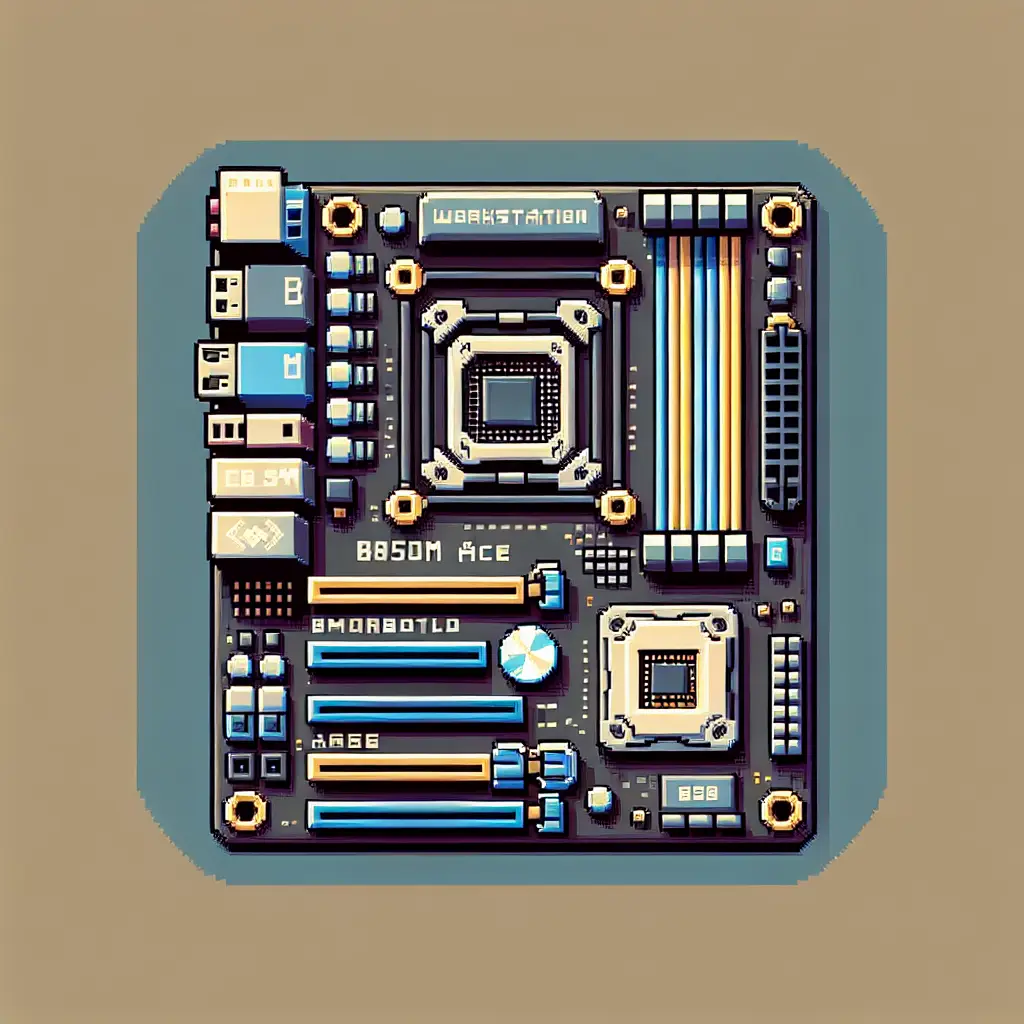
Small board, big ambitions: ASUS Pro WS B850M-ACE SE brings workstation features to microATX AM5 builds
The first time you see the Pro WS B850M-ACE SE you do a double-take — the AM5 socket and the DIMM banks are rotated 90°, giving this microATX board an unconventional layout. That visual oddity is a clue: ASUS didn’t just squeeze desktop features into a smaller footprint. They rethought layout and connectivity to make a compact, IT-friendly workstation that pulls a surprising amount of pro-level hardware into a 244 × 244 mm package.
Below I unpack what makes this board interesting, who it’s for, and why that rotated socket matters beyond aesthetics.
Why this release matters now
- AMD’s AM5 platform continues to expand from mainstream desktop into workstation and server-adjacent use. The B850 chipset fills a sweet spot for builders who want modern AM5 features without an E-ATX footprint.
- ASUS targeted this board at compact workstations and small business servers by adding features you usually see on larger or server boards: onboard BMC with IPMI, a U.2 connector, dual high-speed Ethernet (10 Gb + 2.5 Gb), and PCIe 5.0 support.
- With increasing demand for AI/ML inference at the edge and compact creator rigs, dense connectivity (fast NVMe, multi-Gb networking, remote management) matters as much as raw CPU core count.
Eye-catching specs at a glance
- Form factor: microATX (244 × 244 mm).
- Socket/chipset: AM5 with AMD B850 chipset — supports Ryzen 7000/8000/9000 and EPYC 4005 series.
- Memory: 4 × DDR5 DIMM slots, up to 256 GB, EXPO support (OC up to high speeds).
- Expansion/storage: PCIe 5.0 x16 primary slot, two M.2 slots (one PCIe 5.0 x4), MCIO support and an onboard U.2 connector.
- Networking: onboard 10 Gb Ethernet + 2.5 Gb Ethernet, plus a dedicated 1 Gb IPMI/BMC port.
- Management: onboard BMC (AST2600) with IPMI and ASUS Control Center Express for remote monitoring.
- Extras: front USB-C 20 Gbps header, robust 8+2+1 power stages, 24/7 reliability testing.
(Full tech details on the ASUS product page linked below.)
The rotated socket: what it does and why ASUS might have chosen it
- Space optimization: Rotating the CPU socket (and thus orienting the memory slots along a different axis) rearranges the board’s internal real estate. That allows ASUS to add server-grade features — BMC circuitry, a U.2 connector, MCIO, additional LAN ports — without pushing the layout beyond a microATX size.
- Cooler compatibility trade-offs: Most aftermarket coolers assume the CPU orientation found on ATX boards. While standard AIOs and many air coolers will still fit, tight builds or unusual bracket designs could encounter clearance issues. Builders should check cooler compatibility against the board’s layout.
- Cable routing and case fit: The rotated layout changes cable and fan header positions relative to case panels. For compact workstations and bespoke small-form-factor enclosures, that can be an advantage (shorter NVMe/MCIO traces, better airflow zoning) — just confirm the case supports the positioning.
- Serviceability and pro usage: For IT/enterprise customers, being able to cram more I/O and remote management into a smaller board is a net win; the rotated layout is a practical compromise to prioritize features over standard orientation.
Who should consider the Pro WS B850M-ACE SE
- Small business or home lab admins who need remote management (IPMI) but prefer a compact chassis. The onboard BMC and dedicated management NIC let you monitor and administer systems headlessly.
- Creators and AI/ML hobbyists who want high-bandwidth storage (PCIe 5.0 M.2, MCIO, U.2) and multi-gig networking in a small desktop/workstation build.
- Builders constrained by space who still want PCIe 5.0 graphics or accelerators plus enterprise-grade connectivity.
- Not ideal for people who want plug-and-play compatibility with every consumer cooler or who insist on standard ATX layout expectations without checking clearances first.
Trade-offs and things to check before buying
- Cooler fit: verify your CPU cooler (air or AIO bracket) supports the rotated socket or has enough clearance.
- Case compatibility: microATX cases vary; double-check standoff alignment, IO shield area, and whether front-panel USB-C routing lines up.
- U.2 vs modern NVMe priorities: U.2 remains useful for certain enterprise SSDs and hot-swap setups, but many consumer builds will rely primarily on M.2 drives. If you need U.2 specifically, this board is unusually accommodating for its size.
- Remote management complexity: IPMI/BMC is powerful for IT, but it introduces additional configuration and potential security considerations; treat the BMC interface like any network-facing admin service.
How this fits into the broader AM5 & workstation landscape
ASUS is signaling that AM5 isn’t just for full-size enthusiast motherboards. By putting server-grade features into microATX format, they’re acknowledging a market trend: people want workstation capabilities in smaller form factors for edge inference, compact studios, and dense deployments. Expect more OEMs and board makers to explore similar compromises — squeezing IPMI, multi-gig networking, and industrial storage interfaces into smaller boards — especially as AI workloads demand fast local storage and network throughput.
My take
This is one of those “clever engineering” products: it doesn’t radically change performance specs for consumers, but it democratizes workstation features into a compact footprint that actually makes sense for modern workflows. The rotated socket is a pragmatic design choice rather than a gimmick — it unlocks space for the features that matter to IT and pro users. If you’re building a small workstation with remote management or need industrial storage support in a microATX box, this board is worth a close look. If you’re purely a gaming consumer who swaps coolers and cards frequently, the unusual layout means extra homework before purchase.
Practical buying notes
- Expect pricing to be above typical consumer microATX boards because of the embedded BMC, 10 GbE, and industrial connectors. Retail listings show it in the workstation price band.
- Verify BIOS compatibility with your chosen Ryzen or EPYC 4005 CPU (ASUS lists supported families; check the support page for CPU compatibility).
- For IT deployments, plan for BMC security (firmware updates, network segmentation, credential management).
Final thoughts
ASUS’s Pro WS B850M-ACE SE is a tidy example of product differentiation: same AM5 ecosystem, but a different set of priorities. It’s a microATX motherboard built for professionals who need remote management, industrial storage options and high-speed networking without the bulk of a larger board. The rotated socket is simply the engineering price paid to make all that fit — a smart trade for the intended audience, and a sign that motherboards will keep evolving in form as well as function.
Sources
Related update: We recently published an article that expands on this topic: read the latest post.
Related update: We recently published an article that expands on this topic: read the latest post.

Sick of smart TVs? Here are your best options
You’re not alone. If the idea of a TV that spies on your viewing habits, nags you with ads, or slows to a crawl after a few years sounds terrible, welcome to the club. Smart TVs are brilliant when they work, but they also bundle an always-on computer — complete with telemetry, bloatware, and vendor lock-in — right into your living room. The good news: you don’t have to live with it. Here’s a friendly, practical guide to escaping the smart-TV treadmill without sacrificing picture quality.
Why “dumb” TVs are suddenly a thing again
Over the last decade, manufacturers jammed internet-capable software into every screen. That convenience came with trade-offs:
- Privacy concerns from telemetry, voice assistants, and ad targeting.
- Software that ages faster than the hardware — manufacturers often stop updating TV OSes after a few years.
- Preinstalled apps, ads, and sluggish interfaces that degrade the experience.
- Repair and longevity problems when a TV’s software becomes a liability.
Ars Technica recently put this tension into sharp focus and asked a simple question: how can you get a great display without the smart-TV strings attached? The answers fall into a few practical categories — each with pros and cons depending on your budget, technical comfort, and tolerance for tinkering. (arstechnica.com)
Choices that work (and what to expect)
1. Buy a genuinely non-smart TV (yes, they still exist)
- What it is: A basic television that lacks an internet-capable OS.
- Pros: No telemetry, no ads, simpler UI, sometimes cheaper.
- Cons: Fewer models available; often lower-tier panels or fewer modern features (HDR, HDMI 2.1) at the same price points.
- Who this fits: Minimalists, people who watch via antenna/cable or dedicated devices and want a no-friction display.
2. Buy a smart TV and never connect it to the internet
- What it is: A modern TV with excellent panel tech whose network functions you never enable.
- Pros: Access to high-quality displays (brightness, color, HDR, HDMI 2.1), longevity of hardware, and you can still use external devices for streaming.
- Cons: Some TVs force-sign-in screens or firmware checks on boot; internal apps remain dormant but present.
- Practical tip: Disable Wi‑Fi, don’t plug an Ethernet cable in, and set up your streaming box, game console, or antenna to handle content. Many reviewers say this gives the best balance of picture tech and privacy. (howtogeek.com)
3. Buy a smart TV but strip or lock down its software
- What it is: Use privacy settings, remove (or hide) accounts, block telemetry, or use router-level DNS/firewall blocks for tracking domains.
- Pros: Keeps built-in features if you occasionally want them; maintains a single remote experience.
- Cons: Not foolproof — firmware updates can re-enable things, and it takes technical know-how to manage network-level blocks.
- Who this fits: Tech-savvy buyers who want the convenience but refuse to be tracked.
4. Use an external streaming box or stick (Roku, Apple TV, Fire TV, Chromecast)
- What it is: Pair any display with a small, replaceable streaming device.
- Pros: External devices are updated more regularly, are easier to replace, and centralize streaming under platforms you control. Swap them when they age or you don’t like them.
- Cons: More boxes/remotes to manage; the external device vendor may still have tracking (so pick one whose privacy stance you like).
- Note: This is the most future-proof approach — upgrade the streamer, not the display. (arstechnica.com)
5. Consider projectors, computer monitors, or commercial signage
- What it is: Alternatives that can function as TV displays without consumer smart features.
- Projectors:
- Pros: Huge screen for the price; many models remain “dumb.”
- Cons: Require dark rooms, careful placement, and usually external audio.
- Computer monitors:
- Pros: Great pixel density, low latency for gaming.
- Cons: Cheaper 4K monitors often lack TV features (tuner, speakers).
- Digital signage displays:
- Pros: Built for long uptime and durability.
- Cons: More expensive and sometimes not optimized for home viewing.
- Who this fits: Home theater enthusiasts, gamers, or anyone willing to accept trade-offs for a non-smart display. (arstechnica.com)
Shopping tips — what to look for when you want a dumb experience
- Prioritize the panel: contrast ratio, peak brightness (for HDR), color gamut, and refresh rate (for gaming).
- Count HDMI ports and check HDMI version (HDMI 2.1 matters for modern consoles).
- If you buy new, read the manual or spec sheet to confirm whether Wi‑Fi or smart features can be completely disabled.
- Consider warranty and supported hours (especially for signage displays or commercial panels).
- If buying used, local classifieds or refurb sellers can be gold mines — but test the unit and ask about network features.
Privacy and network-level tricks to keep smart features quiet
- Put the TV on its own VLAN or guest network and block outbound connections you don’t want (router-level DNS filtering or Pi-hole).
- Disable automatic firmware updates unless you need a patch.
- Avoid signing into vendor accounts on the TV; use an external device for services and log in there.
- Regularly audit permissions for voice assistants or external microphones/cameras.
Alternatives and trade-offs summarized
- Best for ease: Smart TV kept offline or with an external streamer.
- Best for minimalism: New non-smart TV (if you can find a good one).
- Best for picture tech: Modern smart TV used as if it were dumb (disable networking).
- Best for scale: Projector + external streamer for big-screen enthusiasts.
- Best for longevity: Commercial signage displays for durability, but watch energy/noise and cost.
What reviewers and testing labs say
Writers and reviewers agree that the simplest, most future-proof choice is to decouple software from hardware: buy the best display you can afford and route streaming through a separate, replaceable device. That way, you update the part that ages fastest (the software/streamer) without tossing the whole screen. Tom’s Guide, How-To Geek, and other outlets echo that trade-off between display quality and embedded software, and Ars Technica’s recent guide lays out the practical options for avoiding smart-TV pitfalls. (tomsguide.com)
What many folks forget: a cheap workaround is often the most durable. Want Netflix and none of the spying? Plug in a streaming stick and never connect the TV itself to the internet.
A few recommended scenarios
- You want the best picture and low effort: buy a modern TV, keep its network off, and plug in a Roku/Apple TV/Chromecast.
- You want a pure, simple display: hunt for a non-smart TV model or a refurbished commercial panel.
- You want a cinematic, big-screen feel: consider a projector with an external streamer and a soundbar.
- You’re privacy-focused and comfy with networking: block the TV’s telemetry at the router level.
Quick checklist before you buy
- Does the TV allow disabling Wi‑Fi/Ethernet in settings?
- Are firmware updates optional or forced?
- How many HDMI ports and what version?
- Does the TV have a microphone/camera that can’t be physically disabled?
- If used, can you test network features before committing?
Parting thoughts
My take: “Dumb” TVs aren’t just nostalgia — they’re a sensible reaction to an ecosystem that too often prioritizes ads and data over user experience. The cleanest, most sustainable path for most people is to buy the best display you can and separate the software with a dedicated streamer. That gives you high-quality picture tech, the ability to swap streaming platforms as they evolve, and a lot more control over privacy without sacrificing convenience.
If you’re truly allergic to anything smart, used markets and budget non-smart models still exist — but be ready to trade some modern features for that peace of mind. Ultimately, the smart move is to choose the approach that keeps upgrades modular: replace the brains, not the TV.
Useful takeaways
- Keeping a TV offline and using an external streamer is the most practical way to avoid smart-TV tracking without sacrificing modern display tech.
- Pure non-smart TVs are rare but still available; consider them if you want zero network features.
- Projectors, monitors, and commercial panels are valid alternatives with unique trade-offs.
- Network-level blocking and privacy hygiene can significantly reduce telemetry even if you keep smart features available.
Sources
Related update: We recently published an article that expands on this topic: read the latest post.
Related update: We recently published an article that expands on this topic: read the latest post.
